
When you have finished reading these help notes, please close the window.
This screen is used to view and/or amend details for the children who are booked to attend the service on this date.
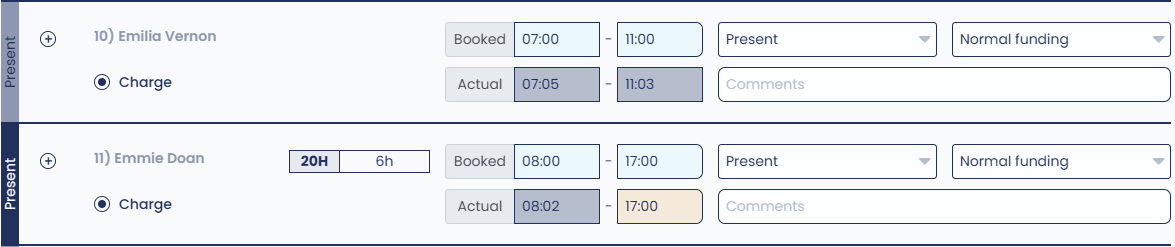
The sign in sheet shows fields for the childs name, the booked times, the actual attended times, attendance type, funding type, a comments field and a radio button to indicate if the child is to be charged fees for the day. This screen also displays any "20 hours ECE" hours that have been attested on the child's timetable.
Important Note: In order to calculate and apply the 3 Week Absence rule correctly, Infocare requires the sign in sheets to be updated in date order. For example, when updating sign in sheets please ensure that Monday is updated before Tuesday etc.
Note: If you have marked the Centre Calendar with "Emergency Close" or "Service Open - Holiday Period With No Attendances" on this day, mark all children as "Absent".
If your Service uses GoDigital!
If an attendance time has been recorded in GoDigital, on the Infocare sign in sheet, the attendance field will show highlighted in grey and you will not be able to change the attendance times from the Infocare sign in sheet.
If these times require modification, sign into GoDigital! and make the required changes via:
Admin Portal > Children > Child Attendance.
If an attendance time is still showing highlighted in yellow on the Infocare sign in sheet, this is because the child's attendance times have not yet been recorded in GoDigital!.
You can make changes to a selected group of children in bulk;
To select specific children, click the select radio button  next to the first child that you would like to include in your selection, to select the next child you would like to include hold the Ctrl key on your keyboard, then click the select radio button for the next child (and so on), once you have selected the children you require, remove your finger from the Ctrl key then select the action you would like.
To select all children, click the  radio button next to the column heading Name.
For the selected children you can -
Mark them absent - will mark all selected children absent.
Mark them present - will mark all selected children present.
Tick charge box - will set all selected children to Charge.
Untick charge box - will set all selected children to No Charge.
Adding a child to the sign in sheet
To add another child to the sign in sheet, select the child from the "Add Child" drop down list at the top of the screen then click Add Child. The child will be added to the top of the list of children and the status bar at the left hand side of the screen will be green.
Update Attended/Booked Times
If required, enter the correct booked times for the child/children. You can use the "tab" key to move between the booked times for each child.
From the printed sign in sheets, enter the correct attended times for each child. You can use the "tab" key to move between the attended times for each child.
Update the Attendance status
Present - Is the default option, if the child was present at the service there is no need to change this field.
Absent - If the child was absent or sick, select Absent from the drop down list.
The child will still be billed for this day and MoE funding will still be claimed as long as the 3 week absence rule has not been broken. For children who have been marked as absent, the status bar for that child at the left hand side of the screen will be highlighted in yellow when you next access this screen.
Holiday - If the child is on holiday, select Holiday from the drop down list.
If you offer a discounted fee for holidays, the child will still be billed for this day (at the discounted rate) and MoE funding will still be claimed as long as the 3 week absence rule has not been broken. For children who have been marked as Holiday, the status bar for that child at the left hand side of the screen will be highlighted in yellow when you next access this screen.
School Visit - If the child is on a school visit, select School visit from the drop down list.
Children who have been marked as "School Visit" will not be counted as absent for funding purposes. For children who have been marked as School Visit, the status bar for that child at the left hand side of the screen will be highlighted in yellow when you next access this screen.
Exclude - If you do not wish to include the child on the sign in sheet at all for this day, select Exclude from the drop down list.
Children who have been marked as Exclude will not be billed for this day, nor will any funding be claimed for this child on this day. For children who have been marked Exclude, the status bar for that child at the left hand side of the screen will be highlighted in red,
Update Funding Status
Normal Funding - Normal funding will display if the child is a regular enrolment.
If there are no special funding requirements that apply to the child on this day, and the system can calculate funding based on the child's timetable and enrolment data there is no need to update this field.
Casual Funding - Casual funding will display if the child is a casual enrolment.
The funding status can be changed to "casual funding" if for any reason the childs funding status needs to be modified. For example, where the child has broken the frequent absent rules for 4 months in a row.
No Funding - No funding will display if the child has No funding selected within their timetable.
If funding needs to be removed for any reason for a child for the day, you can select No funding from the drop down list. For children who have been set to No Funding, the status bar for the child at the left hand side of the screen will be highlighted in orange when you next access this screen.
Charge - The charge radio button can be used to select if a child should be charged fees for the day. By default fees will be charged for the day. To remove the fees charged for the day, deselect the Charge radio button for the applicable child.
Comments - Enter any Comments you would like to record. Any comments entered in this field will appear on the printed sign in sheet.
If you do not want the comments to be printed but still want the comment recorded in Infocare, enclose the comment in single quotes (e.g., 'sick due to mumps')
Comments enclosed in single quotes will not appear on the printed sign in sheet.
Print - Select the print button to display the sign in sheet on screen. Select Print to Printer to print the sign in sheets.
Update - Once the sign in sheet has been updated with the childrens attendance information click Update to save the amendments and return to the previous screen.
To save the changes and move to the sign in sheets for the next day, click the Next Day button.
For further information or assistance call
0508 INFOCARE (0508 463622) or email help@infocaresolutions.co.nz
© 2018 Infocare Systems Limited